|
|
| Line 1: |
Line 1: |
| − |
| |
| − |
| |
| | | | |
| | = Instructions = | | = Instructions = |
| Line 14: |
Line 12: |
| | 2. Add the magic keyword, "__TOC__" , at the position where you want to place the table of content and save your changes. | | 2. Add the magic keyword, "__TOC__" , at the position where you want to place the table of content and save your changes. |
| | | | |
| | + | <br/> |
| | | | |
| | = Advanced = | | = Advanced = |
| Line 21: |
Line 20: |
| | | | |
| | To put both the magic keywords, switch to " Show Wiki Text Editor" Option as shown above | | To put both the magic keywords, switch to " Show Wiki Text Editor" Option as shown above |
| − | | + | {{format}} |
| | <br/>__NOAUTHORLIST__ | | <br/>__NOAUTHORLIST__ |
| | | | |
| | [[Category:Articles]] | | [[Category:Articles]] |
Revision as of 12:37, 22 June 2016
Instructions
If an article has more than 3 headings, a table of content (TOC) is automatically created and displayed at the top of the article. However, if you want to change the position of the TOC, please follow these steps:
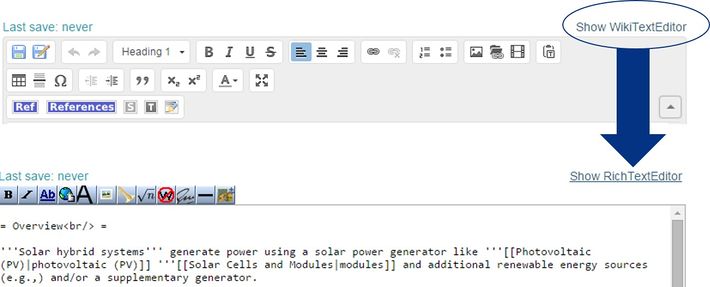
1. Click on "Edit" and then on the text, "Show WikitextEditor" in the right corner of the article:
2. Add the magic keyword, "__TOC__" , at the position where you want to place the table of content and save your changes.
Advanced
- If you have less than 3 headings but still want a TOC, then add the magic keyword "__FORCETOC__" anywhere on the article to get a TOC.
- Conversely, the magic keyword "__NOTOC__" will suppress the TOC, if placed anywhere within the article.
To put both the magic keywords, switch to " Show Wiki Text Editor" Option as shown above
Template:Format